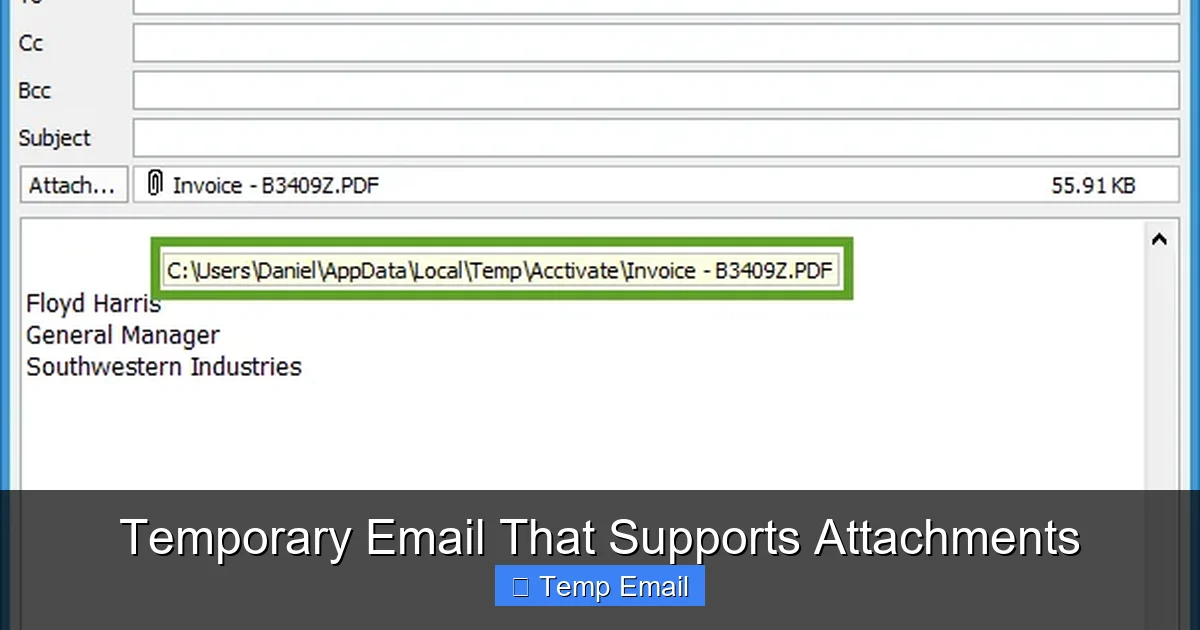
Temporary email services that support attachments bridge a critical gap in online privacy. Unlike basic throwaway inboxes, these platforms let you securely send and receive files—like PDFs, images, or documents—during sign-ups or temporary exchanges, all without revealing your primary email address. They’re essential for freelancers, testers, and anyone wanting to avoid spam while still completing tasks that require file uploads. This guide explores how they work, top service comparisons, security realities, and practical tips for safe, effective use.
You’ve been here: you need to download a whitepaper, sign up for a software trial, or register on a forum, but it demands an email address for verification. Using your personal or work email feels risky—it’s a one-way ticket to spam, data broker lists, and a cluttered inbox. A temporary email seems like the perfect solution… until you hit a wall. The site wants you to upload a file—a resume, a contract, a screenshot—and your disposable inbox? It can’t handle it. Basic temp mail services often lack attachment support, leaving you stranded. That’s where the new generation of temporary email with attachment capability comes in. It’s not just about hiding your address anymore; it’s about completing real-world digital tasks without compromise. This guide dives deep into these hybrid tools, how they work, which ones to trust, and how to use them wisely without creating new problems.
Key Takeaways
- Attachment capability is a game-changer: Most disposable emails block files, but specialized services enable secure receipt/sending of documents, images, and archives for forms, trials, and collaborations.
- Security is nuanced, not absolute: While they shield your main address, attachment scanning by providers and temporary storage risks mean you should never send sensitive personal data (like IDs or financial docs).
- File size and type limits vary widely: Expect caps between 10MB to 50MB per file and restrictions on executable (.exe) or script files. Always check a service’s limits before uploading critical files.
- Inbox lifespan is short: Emails and attachments auto-delete after hours or days. Download needed files immediately and don’t rely on long-term storage.
- Use cases extend beyond spam prevention: Ideal for software trials, freelancer client onboarding, anonymous forum sign-ups requiring verification, or sharing one-time download links without personal exposure.
- Not all “temp mail” services are equal: Some offer attachment support but poor UI or weak security. Prioritize services with HTTPS, clear privacy policies, and reasonable retention periods.
- They complement, not replace, secure methods: For highly confidential transfers, encrypted cloud storage with password protection remains superior. Use temp mail for low-risk, temporary file exchanges.
📑 Table of Contents
- What Exactly is a Temporary Email That Supports Attachments?
- Why Attachment Support Matters: Beyond Spam Prevention
- How Do They Work? The Technical & Security Balance
- Top Services Compared: Features, Limits, and Usability
- Step-by-Step: How to Use a Temp Email with Attachments Safely
- Security Deep Dive: The Risks You Must Manage
- When NOT to Use a Temp Email with Attachments (The Limits)
- The Future & Ethical Considerations
- Conclusion: Smart, Temporary, and Attached
What Exactly is a Temporary Email That Supports Attachments?
Let’s start with a clear definition. A temporary email (also called disposable, throwaway, or fake email) is a service that provides a random, short-lived email address and inbox. The core idea is anonymity and inbox hygiene. You use it once or twice for a specific purpose, then abandon it, and it self-destructs, leaving no trace linked back to you.
The Critical Attachment Gap
The vast majority of free disposable email services are designed for one thing: receiving a single verification link or code. Their infrastructure is minimal. They typically block all incoming attachments to save server space and mitigate security risks from malicious files. Outgoing mail (you sending an email) is often disabled entirely. This is fine for simple “click the link” tasks but fails the moment a website’s upload button appears.
The Hybrid Solution
A temporary email that supports attachments is a specialized subset of these services. It maintains the disposable, anonymous nature but upgrades the backend to allow:
- Receiving attachments: You can get files sent to your temp address (e.g., a client sends you a brief via the platform).
- Sending attachments: You can upload a file from your device and send it from your temp address (e.g., uploading your resume to a job board form).
- Larger storage quotas: They allocate more temporary storage space to accommodate files, not just text emails.
Think of it as a “mailing envelope” service. You’re not getting a permanent, feature-rich mailbox like Gmail or Outlook. You’re getting a secure, anonymous envelope for a single document exchange that burns itself after use.
Why Attachment Support Matters: Beyond Spam Prevention
If you’re only using temp mail for “get the coupon code,” you might not see the value. But modern web interactions frequently involve files. Here’s why attachment-enabled temp mail is becoming essential.

Visual guide about Temporary Email That Supports Attachments
Image source: thumb.modcdn.io
The Sign-Up & Verification Hurdle
Many SaaS platforms, freelance marketplaces (like Upwork or Fiverr initial gigs), and educational sites require you to upload a document during registration—a portfolio, ID scan, or course prerequisite. Using your primary email forces you to upload from your main account, permanently linking that file to your identity in their system. With a temp mail, the file is uploaded from the temp address, and any reply or stored copy is isolated.
Freelancers & Gig Workers
A graphic designer takes on a quick $50 logo job from a new client on a micro-platform. The client wants to send reference images and receive the final deliverables. Sharing a personal Google Drive link exposes your account. Using a temp email with attachment support creates a neutral, disposable channel. You receive the brief’s images, send the final PNGs, and the entire paper trail vanishes in 24 hours.
Software & Beta Testing
Testers for new apps or games often need to submit bug reports with screenshots or log files. Developers may request a sample file to test upload functionality. A temp inbox lets you participate in these tests without risking your main email’s reputation or flooding it with test notifications.
Anonymous Forum or Community Participation
Some niche forums (e.g., for privacy advocates, certain hobbyist groups) require email verification and allow image uploads in posts. A temp address with attachment capability lets you engage fully while maintaining a layer of separation between your online persona and real-world identity.
How Do They Work? The Technical & Security Balance
The magic isn’t in complexity but in deliberate, limited design. Understanding this helps you use these tools safely.
Visual guide about Temporary Email That Supports Attachments
Image source: blog.freedcamp.com
Infrastructure in a Nutshell
These services run on cloud servers with temporary databases. When you generate an address (e.g., [email protected]), the system creates a folder for that address. Incoming emails (with or without attachments) are stored there. The attachment files are stored on the server’s temporary disk space. A timer is set—often 1 hour, 6 hours, 24 hours, or 7 days—after which the folder and all its contents are purged.
The Attachment Journey: Sending & Receiving
- Receiving: Someone sends an email with a file attached to your temp address. The service’s servers accept it (most have basic virus scanning for inbound files), store the file in your temp folder, and make it available in the web inbox interface. You log in, see the email, click the attachment, and download it to your local device.
- Sending: You compose a new email in the temp interface, add a recipient, attach a file from your computer (which gets uploaded to the server’s temp storage), and hit send. The service’s server then delivers the email (with its attachment) to the recipient’s actual mail server.
Security Realities: What’s Protected, What Isn’t
This is the most crucial section. “Temporary” does not mean “invisible” or “unbreakable.”
- Encryption in Transit: Reputable services use HTTPS (SSL/TLS) for their web interface, so your login session and file uploads are encrypted between your browser and their server. Always check for the padlock icon.
- Server-Side Scanning: Most providers scan attachments for malware on their servers before storing them. This is for their protection, not necessarily yours. A malicious file might be blocked from reaching you, but the provider still briefly holds it.
- No End-to-End Encryption: Unlike ProtonMail or Tutanota, temp mail does not offer E2EE. The provider can technically access the content of emails and attachments stored on their servers. Their privacy policy should state they don’t log or scan content, but you must trust their claim.
- Ephemeral Storage is the Primary Privacy Feature: The main privacy win is the auto-deletion. Even if a provider’s server were compromised, the data from your temp address would likely be gone unless it was intercepted during its very short lifespan.
- IP Logging: Many services log your IP address when you access the inbox. This is often for abuse prevention. If anonymity is paramount, using a trusted VPN alongside the temp service is a wise practice.
Golden Rule: Never send personally identifiable information (PII) like scans of passports, credit cards, signed contracts with signatures, or confidential business plans via a temporary email, even with attachment support. The risk, while low for a 1-hour inbox, is not zero.
Top Services Compared: Features, Limits, and Usability
Not all players are created equal. I’ve tested numerous services that claim attachment support. Here’s a practical comparison based on key factors for a user like you.

Visual guide about Temporary Email That Supports Attachments
Image source: as2.ftcdn.net
Key Evaluation Criteria
- Attachment Size Limit: The maximum file size per upload. This is often the first limiting factor.
- Allowed File Types: Some block executables (.exe, .bat), scripts (.js, .php), or even certain archive formats.
- Inbox Lifespan: How long the address and its contents survive after last activity.
- Outgoing Email (Sending): Can you actually send emails with attachments from the service, or only receive?
- User Interface (UI): Is it clean and fast, or cluttered with ads that make downloading files a chore?
- Privacy Policy Transparency: Do they clearly state what they log and how long data persists?
Service Spotlight: Temp-Mail.org
A long-standing player with robust attachment features.
- Size Limit: Up to 50MB per file.
- File Types: Generally permissive, but may block known dangerous types.
- Lifespan: Inbox expires after 1 hour of inactivity. Can be manually extended.
- Sending: Yes, you can send emails with attachments from your temp address.
- Pros: Reliable, clean interface, no forced registration, generous size limit.
- Cons: The 1-hour default is very short; you must be proactive to extend it if waiting for a reply.
Service Spotlight: DropMail.me
Focuses on a simple, fast experience with good attachment handling.
- Size Limit: 25MB per file.
- Lifespan: Default 24 hours. Can be extended to 7 days with a click.
- Sending: Yes, sending with attachments is supported.
- Pros: Extremely intuitive, open-source codebase (auditable), strong privacy stance, clear countdown timer.
- Cons: Slightly smaller size limit than some competitors.
Service Spotlight: 10MinuteMail.com
The classic, but with modern attachment features.
- Size Limit: 10MB per file (more restrictive).
- Lifespan: The address lasts 10 minutes by default, but you can extend it in 10-minute increments up to 1 hour.
- Sending: Yes, but the short window makes sending impractical for delayed replies.
- Pros: Ultra-simple, iconic service, very short lifespan maximizes anonymity.
- Cons: Tiny attachment limit and extremely short clock make it only suitable for instant, tiny file exchanges.
Practical Tip: For any service, always check the “Help” or “FAQ” section for the most current limits. These can change. When in doubt, start with a small test file (like a 1MB text document) before relying on it for a critical upload.
Step-by-Step: How to Use a Temp Email with Attachments Safely
Knowing the tools is one thing; using them correctly is another. Follow this workflow to minimize risk and frustration.
Step 1: Choose the Right Service for the Task
Ask yourself: What’s the file size I need to send/receive? How long might the conversation last? If you’re uploading a 30MB video clip for a contest, you need a 50MB+ limit service like Temp-Mail.org. If you’re just sending a 2-page PDF resume, almost any will do. If you expect a reply within a few hours, a 24-hour inbox (DropMail) is better than a 1-hour one.
Step 2: Generate Your Address and Prepare
Go to the service website. You’ll instantly get an address. Copy it immediately. Some services refresh the address if you reload the page, so keep the tab open. Have your file ready on your desktop.
Step 3: The Upload Process
On the website requiring the email and file:
- Paste the temp email address.
- Use the file upload button. Select your prepared file.
- Submit the form.
Critical: Watch for any “success” message. If the upload fails, it’s likely due to file size or type limits. Check the temp service’s limits first.
Step 4: Monitor Your Inbox Actively
Keep the temp mail tab open and refresh it periodically (some have auto-refresh). You’re waiting for two things:
- A confirmation email from the site (which may contain a link or a receipt).
- Potentially, a reply from a human that includes an attachment.
Do not close the tab. The countdown is usually based on inactivity. If you leave the tab open, some services pause the timer.
Step 5: Immediate Action Upon Receipt
When an email arrives with an attachment:
- Open it.
- Download the attached file to your computer immediately. Do not just view it in the browser if possible, to ensure you have a local copy.
- If it’s a text file or PDF, read it. If it’s an image, save it.
Do not rely on the temp service to hold it for you. The timer is ticking.
Step 6: Clean Up and Forget
Once you have the files you need and any necessary confirmation codes/link clicks are done, simply close the browser tab. The service will delete everything after its set time. There is no “account” to delete. You’re done.
Security Deep Dive: The Risks You Must Manage
Using a temp email with attachments is safer than using your primary email for shady sites, but it’s not a Fort Knox. Here are the real risks and how to mitigate them.
Risk 1: The Service Itself
A malicious or poorly run temp mail provider could:
- Log your IP address and the emails/attachments you receive.
- Inject ads or malware into the web interface you use to view/download files.
- Sell “aggregated, anonymized data” (which may not be truly anonymous).
Mitigation: Stick to well-known, reviewed services (like the ones mentioned). Check for HTTPS. Read their privacy policy—look for “we do not log,” “no storage,” or “auto-deletion.” Use a reputable ad-blocker or privacy-focused browser (like Brave or Firefox with uBlock Origin).
Risk 2: Malicious Attachments
This is the classic risk. You download an attachment that contains a virus, ransomware, or spyware.
Mitigation: This is non-negotiable. Always scan every downloaded file with a robust antivirus/anti-malware program before opening it. Modern AV software often scans on download. Treat every file from a temp email as suspect, even if it came from a seemingly legitimate site. The site itself could have been compromised.
Risk 3: Data Interception During Transfer
If the temp service uses HTTP (not HTTPS), your file upload and email content could be intercepted by someone on your network (like public Wi-Fi).
Mitigation: Only use services with a valid HTTPS padlock. For extreme caution, use a trusted VPN on public networks.
Risk 4: Accidental Exposure
You receive an attachment with sensitive info (e.g., a contract with someone’s personal address). You download it, but then forget and leave it in your “Downloads” folder. Or, you accidentally forward the temp email to your real address.
Mitigation: Be disciplined. After downloading, move the file to a specific “Temp Mail Downloads” folder and delete it after use. Never forward emails from your temp address to your primary account. That defeats the entire purpose.
When NOT to Use a Temp Email with Attachments (The Limits)
These tools are fantastic for specific scenarios, but they have hard boundaries. Ignoring these leads to failure or danger.
Legal & Official Documents
Government agencies, banks, courts, and verified employers will never accept a disposable email address. They require a traceable, permanent email for legal notices and secure communication. Using a temp address here will get your application rejected or, worse, raise flags.
Long-Term Project Collaboration
If you’re working on a month-long project with a team, a temp email that expires in a week is a terrible idea. Use a proper shared drive (Google Drive, Dropbox) with folder permissions or a project management tool. The temp email is for the initial handshake, not the entire workflow.
High-Value or Highly Confidential Transfers
Sharing source code for a startup, unreleased product designs, medical records, or signed NDAs? Do not use a temp email. The provider’s brief storage, coupled with the lack of E2EE, makes it unsuitable. Use encrypted email (ProtonMail) or password-protected cloud storage with an expiring link, and share the password via a different channel.
Receiving Critical, Time-Sensitive Replies
If you’re expecting a reply that you must get within a few hours (e.g., a last-minute meeting link from a recruiter), a 1-hour auto-delete inbox is risky. You might miss it if you’re not glued to the screen. Use a temp service with a longer default (24h+) or manually extend it, or just use a secondary, dedicated “burner” email you control for such cases.
Anything Requiring Email History
Need to search for an attachment sent weeks ago? Temp mail is not a searchable archive. It’s a shredder. If you think you’ll need to reference the file or conversation later, save it locally and store it properly from the start.
The Future & Ethical Considerations
The landscape is evolving. As more sites try to combat fraud by blocking known disposable email domains, these services engage in a cat-and-mouse game, constantly rotating domains. Some are adding more sophisticated features like alias forwarding (a temp address that forwards to your real one for a limited time) or browser extensions for one-click generation.
Ethically, use these tools to protect your privacy from unwanted data collection, not to commit fraud, evade legitimate bans, or harass others. They are a privacy tool for the individual, not a weapon. Responsible use means respecting the terms of service of the websites you visit. If a site explicitly forbids temp emails (some do in their ToS), using one could get your account terminated. It’s a judgment call between your privacy and that site’s rules.
Conclusion: Smart, Temporary, and Attached
Temporary email that supports attachments is a powerful, pragmatic tool in the modern privacy toolkit. It solves the last major flaw of basic disposable inboxes: the inability to handle the file-based demands of today’s web. By understanding its strengths—anonymity, spam prevention, and temporary file exchange—and its clear limitations—short lifespan, no long-term storage, and moderate security—you can wield it effectively.
The key is intentionality. Don’t use it blindly. Before you paste that temp address and hit “upload,” ask: Is this a low-risk, temporary task? Is the file size within limits? Do I have an antivirus ready? Can I download and secure the file immediately? If yes, you’re using it right. If the answer is no, you need a more robust solution.
In an era of relentless data harvesting, these services offer a valuable pressure valve. They let you say “no” to permanent digital footprints for trivial interactions. Use them wisely, download promptly, scan everything, and let the digital envelope vanish when its job is done. Your primary inbox—and your peace of mind—will thank you.
Frequently Asked Questions
Is it legal to use a temporary email with attachments?
Yes, using a disposable email service is legal in most countries. It’s a tool for privacy protection. However, using it to commit fraud, evade legal obligations, or violate a website’s terms of service can have legal consequences. Always use it for legitimate privacy purposes, not for malicious activity.
Can I send any type of file as an attachment?
No. Most services impose restrictions. They typically block executable files (.exe, .bat, .sh) and sometimes scripts (.js, .php) to prevent malware distribution. Archives like .zip or .rar may also be blocked or scanned. Always check the specific service’s allowed file types list before uploading.
How long do attachments stay on the server?
Attachments are stored only as long as the email inbox exists. This duration varies by service, typically ranging from 1 hour to 7 days after the inbox’s last activity or creation. Once the inbox expires, all emails and their attachments are permanently deleted from the server.
Can I forward an email with an attachment from my temporary inbox to my real email?
Technically, some services may offer a forward feature, but it is strongly discouraged. Forwarding a file from a temp address to your primary email creates a direct link back to the temp address and the sender, partially defeating the anonymity purpose. It also stores the file in your primary inbox permanently. The safest method is to download the file locally and, if absolutely necessary, re-upload it manually from your device.
What’s the biggest security risk when using these services?
The largest risk is the provider itself. Since the service can technically access stored emails and attachments, a malicious or compromised provider could log and steal data. Mitigate this by choosing reputable, transparent services with clear no-logging policies, using HTTPS, and never sending truly sensitive data like financial information or government ID scans.
What’s the best practice for file size limits?
Always assume your file is larger than you think. Before visiting a site that requires an upload, check the temp service’s current size limit (e.g., 25MB, 50MB). If your file is near that limit, compress it (use a ZIP archive for documents/images) or use a different service with a higher cap. Never assume a service can handle a large video or high-resolution image without checking first.
Leave a Reply